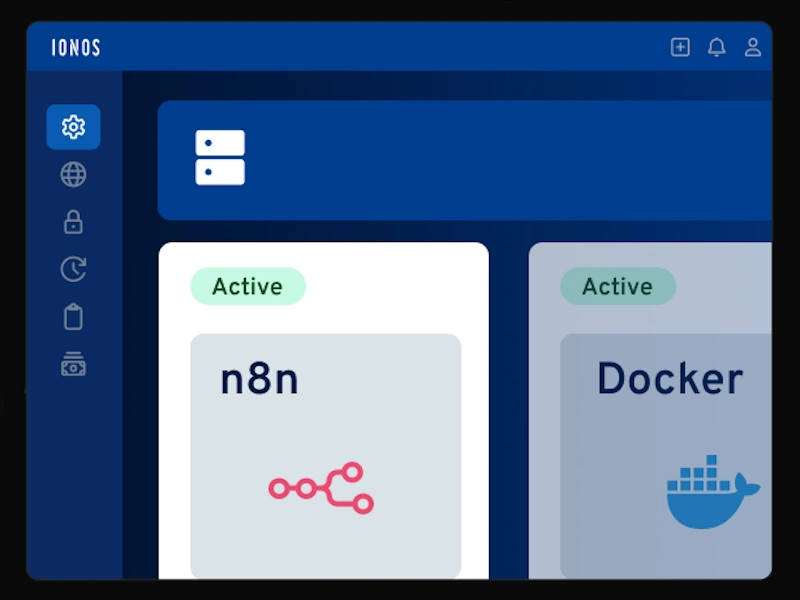
After having set up n8n on a Scaleway instance, I want to try out the pre-configured n8n on an IONOS VPS (Virtual Private Server), which has a very low price of 3€/month for the smallest instance with 4 vCores and 8 GB RAM.
With the Scaleway instance, I took an easy but rather costly way to use a Scaleway Load Balancer for SSL termination. Read more about how I set up the Scaleway n8n instance here:
To get the full benefit of the low priced IONOS VPS, I want to make ends meet without additional resources.
My goal is simple: a n8n instance with a (sub-) domain name pointing to the n8n editor UI.
Set up a IONOS VPS for n8n
Let’s begin by creating a Virtual Private Server in IONOS. After ordering a VPS instance from the IONOS website (I chose the smallest VPS M), it is up and running just a few minutes after order confirmation. At first I was slightly confused when I realized that I had “just” received a plain VM running AlmaLinux. No sight of n8n. Two steps were necessary to get the IONOS pre-configured n8n:
- install the IONOS provided Ubuntu 24.04 + n8n image on the VM.
- change the firewall rule to open the n8n default port 5678.
Use pre-built Ubuntu + n8n image
IONOS provides an Ubuntu 24.04 + n8n image, which is a normal Ubuntu plus a compose file in the home folder to spin up n8n in a docker container. To install the image, sign in to the IONOS customer account, select the VPS instance and click on the Actions button to “Reinstall image”.
(by the way it seems IONOS are working on making the whole UI multi-language. At the moment, the VPS management parts of the UI seem to be German only)
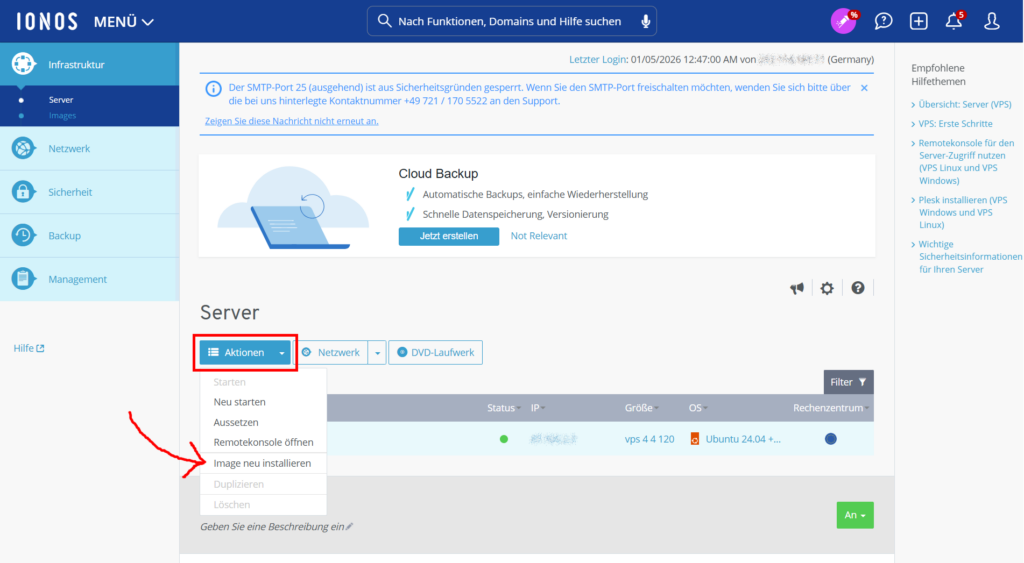
I took the screenshot after I had done this step, which is why the OS in the screenshot is already Ubuntu 24.04 + n8n.
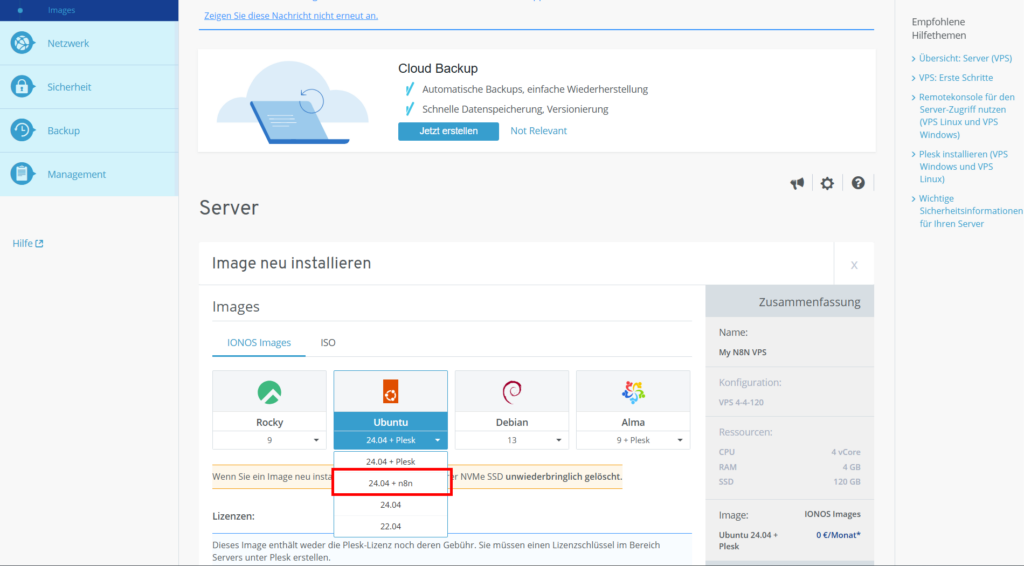
Once the image is installed (you will get an email notification once it is ready), n8n is running on the VPS. To access the editor UI, we need to open the n8n default port in the firewall.
Change firewall rule to n8n port
By default, only the ports for SSH and http(s) are open. We can open a port by clicking on the rule.
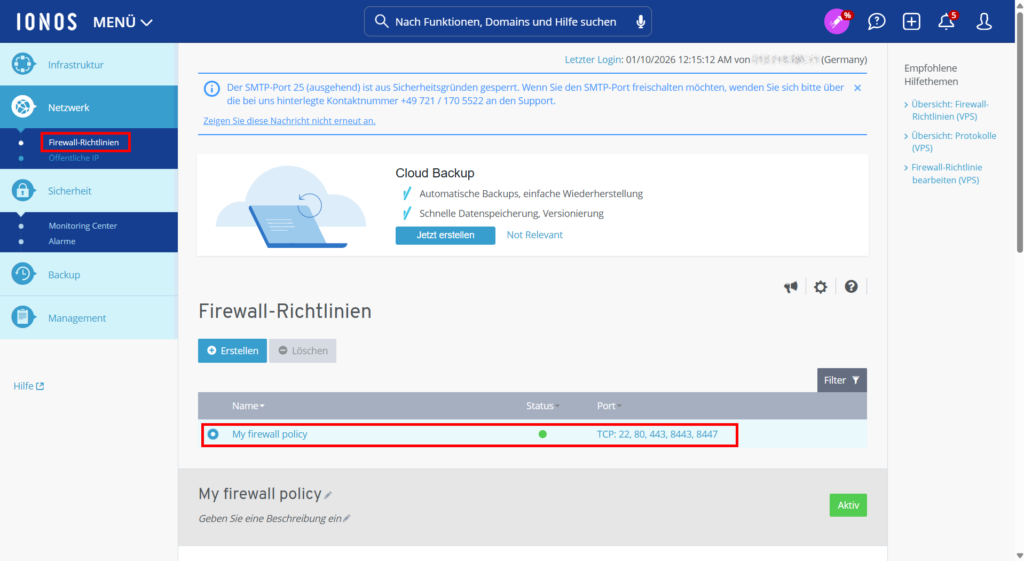
Once the port 5678 is added to the firewall rule, the n8n editor UI can be accessed under http://IP-OF-THE-IONOS-VPS:5678.
Two and a half things are not ideal yet:
- we are not using https yet
- we do not have a domain name yet
- the port is not so nice. It would be nicer to have the editor UI on 443.
We are solving all 3 points by putting a Traefik reverse proxy in front of n8n.
Use Traefik as reverse proxy for n8n with an Actalis certificate
There is a step-by-step guide in the IONOS help center about how to extend the configuration to use a SSL certificate with a Let’s Encrypt certificate. While following the general idea of the guide, I want to use an Actalis certificate instead of one that I am bringing. Actalis is an European certification authority and part of the Italian Aruba group.
My compose.yaml therefore contains a label traefik.http.routers.n8n.tls.certresolver=actalis that points to a certificate resolver configured in the traefik.yaml configuration.
services:
  traefik:
    image: "traefik"
    restart: always
    command:
      - "--configFile=/etc/traefik/traefik.yaml"
    ports:
      - "80:80"
      - "443:443"
      - "127.0.0.1:8080:8080"
    volumes:
      - traefik_data:/data # Traefik data
      - /var/run/docker.sock:/var/run/docker.sock:ro
      # Certificates
      - traefik-certs:/certs
      # Mount traefik config
      - ./traefik.yaml:/etc/traefik/traefik.yaml:ro

  n8n:
    image: docker.n8n.io/n8nio/n8n
    restart: always
    ports:
      - "127.0.0.1:5678:5678"
    labels:
      - traefik.enable=true
      - traefik.http.routers.n8n.rule=Host(`${SUBDOMAIN}.${DOMAIN_NAME}`)
      # The router shall only listen to 'websecure' (HTTPS)
      - traefik.http.routers.n8n.entrypoints=websecure
      # The router shall use TLS
      - traefik.http.routers.n8n.tls=true
      # The router shall use letsencrypt as a resolver for the certificate
      - traefik.http.routers.n8n.tls.certresolver=actalis

      # Definition of the Security-Header-Middleware (Name: n8n-secure-headers)
      - traefik.http.middlewares.n8n-secure-headers.headers.STSSeconds=315360000
      - traefik.http.middlewares.n8n-secure-headers.headers.browserXSSFilter=true
      - traefik.http.middlewares.n8n-secure-headers.headers.contentTypeNosniff=true
      - traefik.http.middlewares.n8n-secure-headers.headers.forceSTSHeader=true
      - traefik.http.middlewares.n8n-secure-headers.headers.SSLHost=${DOMAIN_NAME}
      - traefik.http.middlewares.n8n-secure-headers.headers.STSIncludeSubdomains=true
      - traefik.http.middlewares.n8n-secure-headers.headers.STSPreload=true

      # Assign Middleware to router
      - traefik.http.routers.n8n.middlewares=n8n-secure-headers@docker

    environment:
      # These environment variables are using the .env file
      - N8N_ENFORCE_SETTINGS_FILE_PERMISSIONS=true
      - N8N_HOST=${SUBDOMAIN}.${DOMAIN_NAME}
      - N8N_PORT=5678
      - N8N_PROTOCOL=https
      - N8N_RUNNERS_ENABLED=true
      - NODE_ENV=production
      - WEBHOOK_URL=https://${SUBDOMAIN}.${DOMAIN_NAME}/
      - GENERIC_TIMEZONE=${GENERIC_TIMEZONE}
      - TZ=${GENERIC_TIMEZONE}
    volumes:
      - n8n_data:/home/node/.n8n
      - ./local-files:/files

volumes:
  n8n_data:
  traefik_data:
traefik-certs:In the Traefik configuration I have mainly added the certificateResolvers section to configure the Actalis certificate.
# Static Traefik configuration (traefik.yaml)
api:
  insecure: false # Setting this to true allows the Traefik dashboard (optional)
providers:
  docker:
    exposedByDefault: false # Only containers with 'traefik.enable=true' are considered

entryPoints:
  web:
    address: ":80"
    # automatic redirect from HTTP to HTTPS
    http:
      redirections:
        entryPoint:
          to: websecure
          scheme: https
          permanent: true
  websecure:
    address: ":443"
    http:
      tls: {} # activate TLS for this endpoint

certificatesResolvers:
  actalis:
    acme:
      email: your@email
      storage: /certs/acme.json
      caServer: ${CA_SERVER_URL}
      eab:
        kid: ${EAB_KID}
        hmacEncoded: ${EAB_SECRET}
      httpChallenge:
        entryPoint: web
As you can see, to configure the certificate resolver, we need the certificate authority server URL and an ID (“kid”) and a secret (“hmacEncoded”). To get the ID and the secret, we need a free account with Actalis. After sign-up, there is a section called Manage with ACME in the Actalis Customer Area. In that section, there is a guide on how to set up ACME using certbot. From that guide, we grab the CA Server URL to enter in our .env file later. We do not need the rest of the certbot guide, since we are using the built-in functionality of Traefik for certificate renewal. Scrolling down further in the Manage with ACME section, we find the ACME credentials. The secret in the Traefik configuration must be BASE 64 URL encoded. For it to work, I had to remove the “=” at the end.
Now we have all the necessary information available. The last piece of configuration is to add an environment file .env with the variables used in the compose file and in the Traefik configuration.
# DOMAIN_NAME and SUBDOMAIN together determine where n8n will be reachable from
# The top level domain to serve from
DOMAIN_NAME=[THE_DOMAIN]

# The subdomain to serve from
SUBDOMAIN=n8n

# The above example serves n8n at: https://n8n.website.eu

# Optional timezone to set which gets used by Cron and other scheduling nodes
GENERIC_TIMEZONE=Europe/Berlin

# Settings for the ACME SSL certificate
CA_SERVER_URL=https://acme-api.actalis.com/acme/directory
EAB_KID=[THE_ID]
EAB_SECRET=[THE_SECRET] # must be base 64 url encoded. For me it worked without "=" at the endThe final step is to configure a DNS record for the domain to point to the IP of our VPS.
Epilogue
After having put together this example and this guide, I found a second step-by-step guide in the IONOS help centre describing the exact same setup: n8n with Traefik and a Let’s encrypt certificate (just not with an European certificate provider).
This setup of course works with any provider, not just IONOS. All we need is a server with a Docker runtime and a domain that we are controlling.
Happy automation with n8n for as cheap as 3€/month.